Dynamic Groups
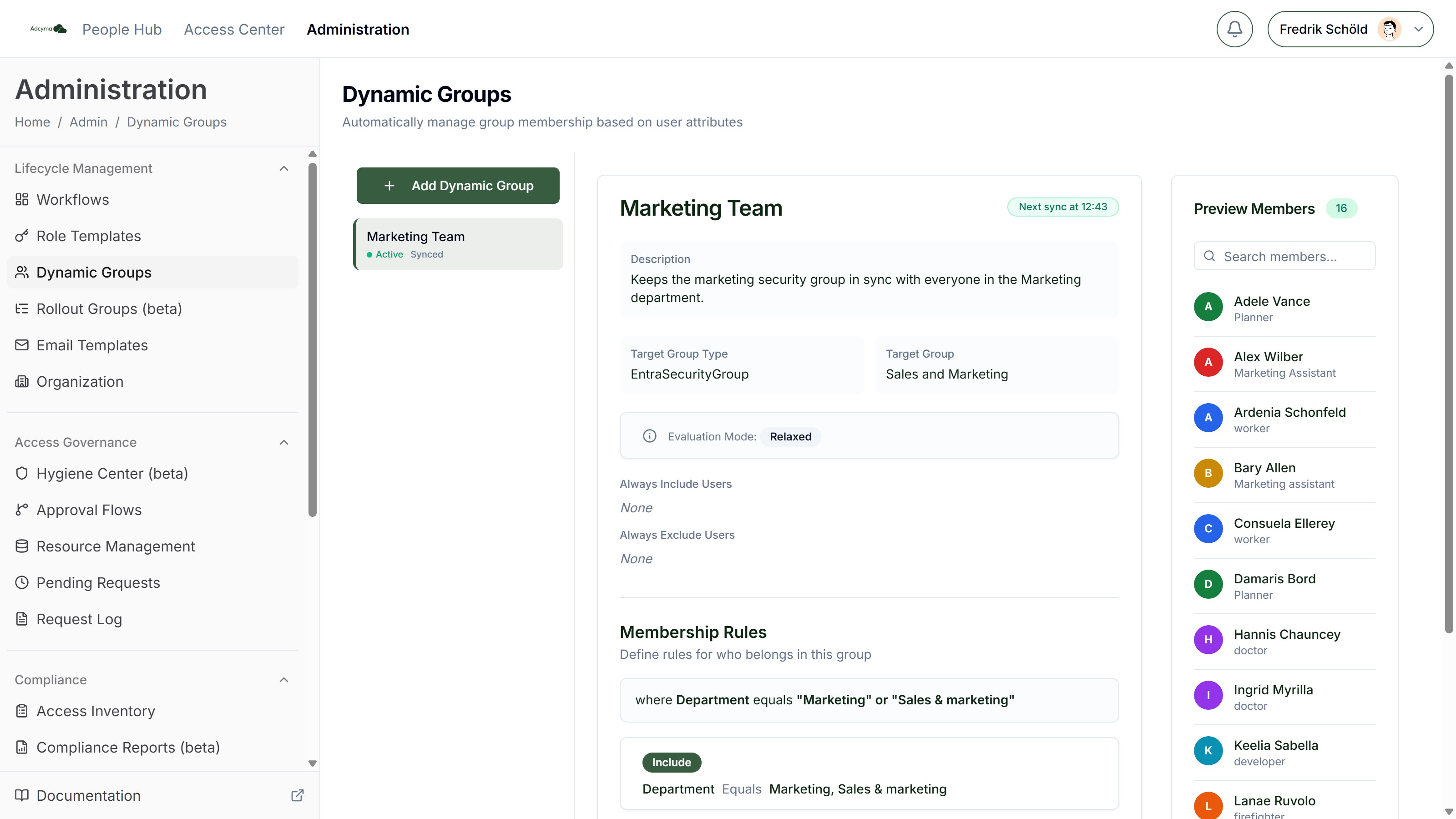
Dynamic Groups let you define rules based on user attributes (like department, job title, or location) and have Adcyma automatically maintain the membership of Microsoft Entra Security Groups or Exchange Distribution Lists. No more manually adding or removing users.
When to Use Dynamic Groups
Good candidates for dynamic groups:
- Department-based distribution lists that update as people change roles
- Security groups for office locations that adjust as people move
- Project teams that need specific tool access based on attributes
- Compliance groups that must include all users meeting certain criteria
For example, you could create a "Marketing Team" group that automatically includes anyone with Department = Marketing, while manually excluding interns and including the CMO (who might be in a different department).
Setting Up Your Dynamic Group
Basic Configuration
Group name Pick a descriptive name that indicates what the group is for. Something like "Marketing-FullTime-Stockholm" is more helpful than "Group1".
Description (Optional) Document the group's purpose, any special rules, or important notes for future administrators. This is especially valuable for complex conditional logic.
Target Group Type Select the type of group you're managing:
- Entra Security Group (for access permissions and security policies)
- Exchange Distribution List (for email distribution)
Target Group Choose the existing group that will be updated, or create a new Entra Security Group directly from this form. The dynamic group configuration controls the membership of this group.
Dynamic Group Owner (Optional, requires the Identity Governance add-on) Assign an owner to this group. Owners can manage the Always Include and Always Exclude lists directly from the Access Center, which lets them handle exceptions without admin involvement.
Evaluation Adcyma evaluates dynamic groups on a schedule (every 15 minutes by default). The next sync time is shown on the group card so you know when the next automatic update will run.
Membership Rules
Evaluation Mode
Choose your approach carefully:
Relaxed Mode (Recommended for most cases)
- Keeps existing manual members in the group
- Adds new users who match your conditions
- Safe option that won't accidentally remove important users
- Best for: Adding structure to existing groups
Strict Mode (Use with caution)
- Completely replaces group membership based on your rules
- Removes users who don't match conditions (except those in "Always Include")
- Can cause access issues if rules are incorrect
- Best for: Groups that should be 100% rule-based
Warning: Strict Mode will remove existing members who don't match your new rules. Test your conditions carefully before applying.
Manual Overrides
Always Include Users Specific users who should be in the group regardless of whether they match the automated rules. Common uses:
- Executives who need access but don't fit standard criteria
- External consultants with special roles
- Users with temporary elevated permissions
Always Exclude Users Users who should never be added, even if they match all conditions. Useful for:
- Suspended employees who still exist in the system
- Test accounts that shouldn't receive group benefits
- Users with conflicting access requirements
If a user is on both lists, exclusion wins.
Membership Rules
Define the automatic membership rules using user attributes. Rules are combined with AND logic, and each rule can be an "If" or an "If not" condition.
Available attributes include: Account Enabled, Usage Type, Created Date, Preferred Language, Job Title, Company Name, Department, Employee Type, Employee Hire Date, Office Location, Manager, Is Manager, Street Address, City, State or Province, ZIP or Postal Code, Country or Region, and Usage Location.
Operators include Equals, Not Equals, Starts With, Ends With, Contains, and comparison operators (Less Than, Greater Than, and so on) for date and numeric fields. Date fields also support age-based conditions, such as accounts created more than a given number of days ago.
Common examples:
Department equals "Marketing"- All marketing team membersJob Title contains "Manager"- All people with manager in their titleOffice Location equals "Stockholm"- All Stockholm-based employeesDepartment = "Sales"ANDJob Title contains "Director"- Only sales directors
Previewing Membership
The Preview Members panel shows which users match your current rules in real time, including why each user matched. This is especially useful when using Strict Mode, so you can verify the result before it affects the actual group.
Best Practices
Start with basic conditions and add complexity gradually. Test each rule before moving to production.
Name your groups clearly. Something like "Finance-Managers-AllOffices" tells you exactly who should be included.
Use the description field to explain complicated conditional rules for future reference.
Periodically review your dynamic groups to make sure they still match your organizational needs.
Troubleshooting
If users aren't being added:
- Verify user attributes match your conditions exactly
- Check spelling and capitalization in your rules
- Confirm the user exists in your directory with the expected attributes
If members are unexpectedly removed:
- Review if you're using Strict Mode unintentionally
- Check if users are in the "Always Exclude" list
- Verify user attributes haven't changed
If the group isn't updating:
- Dynamic group evaluations run on a schedule. Check the "Next sync" time on the group card.
- Check that the target group is correctly selected